
EDUCATIONAL
How To Screenshot Your Creator Account Analytics
A Step-by-Step Guide For Instagram,
TikTok, YouTube & More
14 mins read

How to Screenshot Your Creator Account Analytics
Understanding your creator analytics isn’t just a nice-to-have anymore — it’s the backbone of every serious brand partnership and roster consideration. When brands (and creator managers) evaluate potential creators, they aren’t guessing. They’re looking at real performance data: reach, demographics, growth patterns, audience behavior, and how consistently you show up across platforms. The clearer that picture is, the stronger or more viable your opportunities become.
That’s why sending clean, complete creator account analytics is essential. Whether you’re updating a manager, pitching for a campaign, or applying to an affiliate program, brands need to see the full story behind your content. (Not the curated version. The real numbers.)
At The Sociable Society (TSS), we’ve evaluated thousands of creators and their analytics both for management opportunities on our roster and countless brand campaigns and partnerships. We’ve put together this guide that walks you through exactly how to screenshot your analytics across critical major platforms including: Instagram, TikTok, YouTube, Snapchat, LTK, and Amazon.
Each section below breaks down where to tap, what to capture, and the specific metrics brands and management care about most. No confusion, no guesswork — just the steps to get it right every time.
If you want to present yourself as a professional content creator (and give both brands and managers all the right reasons to say yes) — your analytics are the proof. Here’s how to capture them the right way.
Instagram Insights
Instagram is usually the first place brands and creator managers look to evaluate whether a creator has genuine reach and engagement, so your screenshots here matter the most. Clear insights from your Professional Dashboard help managers understand your performance trends, audience makeup, and how your content is landing.
This section walks you through exactly where to tap so you capture the numbers bands and managers care about, not just whatever pops up first.
1. MAKE SURE YOU HAVE A PROFESSIONAL ACCOUNT
Analytics (Insights) are only available to Creator or business account.
- if you’re still on a personal account, go to Settings →Account → Switch to Professional Account.
2. GO TO PROFESSIONAL DASHBOARD
- Open your profile in the Instagram app.
- Tap the Professional Dashboard button at the top.
- Here you’ll see an overview of performance and creator tools.
3. TAP “CONTENT YOU SHARED”
- This shows all of your posts, reels, and stories within the last 30 days.
- By default, the content is ranked by Reach.
4. APPLY FILTERS
- Use the dropdown menus to adjust:
- Content type: Posts, Reels, Stories, Videos, Lives
- Timeframe: Last 7 days, 30 days, 3 months, 6 months, 1 year, 2 years
- Metric: Reach, Impressions, Likes, Comments, Shares, Saves, Profile Visits, etc.
Instagram Post Analytic Screenshot Examples
Go into Insights → Content You Shared, switch “All” to Posts, and adjust the timeframe to Last 30 Days. Hit the slider button to reveal your Views + Impressions, then screenshot that screen to give brands a clear, up-to-date look at how your recent content is performing and the visibility you’re driving.
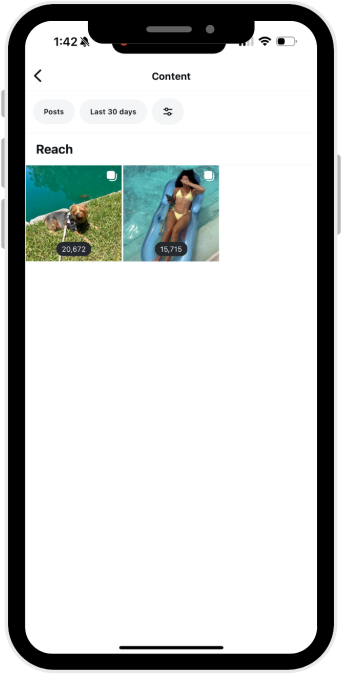
Post Content
Reach
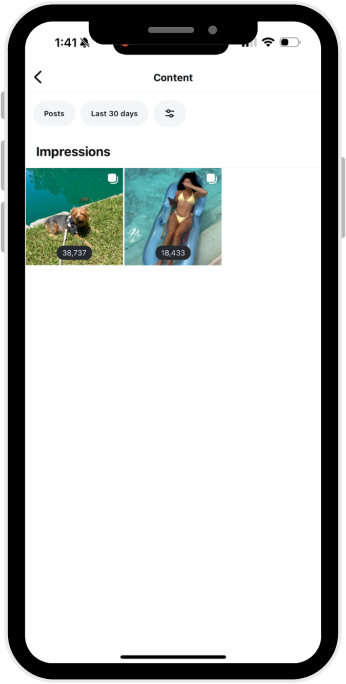
Post Content
Reach
Instagram Story Analytic Screenshot Examples
Go into Insights → Content You Shared, switch “All” to Stories, and toggle between Last 30 Days and Last 7 Days to capture both snapshots. Tap the slider button to surface your Link Clicks, Impressions, and Reach, then screenshot each view to show brands how your stories are performing across both recent and month-long windows.
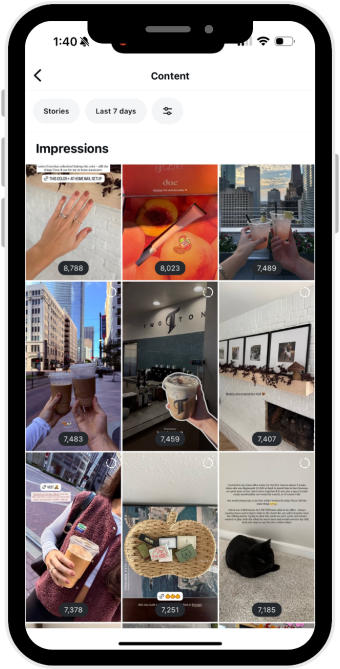
Story Impressions
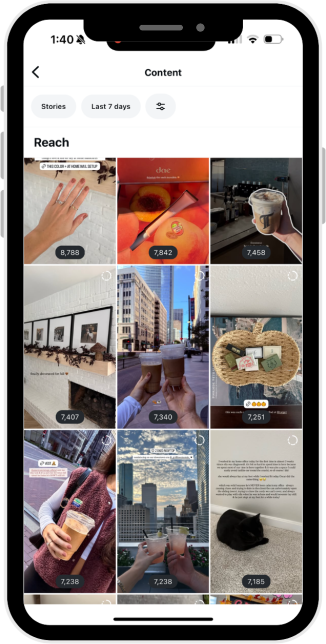
Story Reach
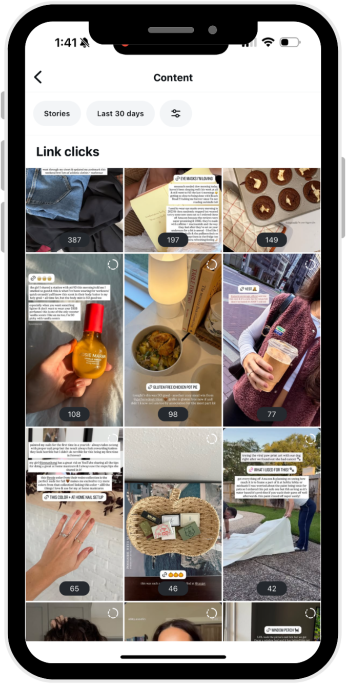
Story Link Clicks
Instagram Reels Analytic Screenshot Examples
Go into Insights → Content You Shared, switch “All” to Reels, and set the filter to Last 30 Days (and 7 Days if you want both snapshots). Tap the slider button to pull up your Views and Reach, then screenshot each timeframe to give brands a clear look at how your Reels are performing and how widely they’re being surfaced.
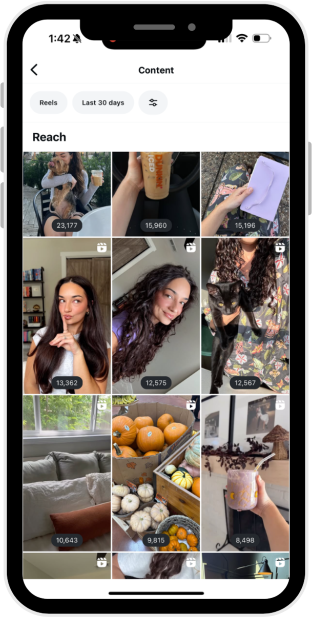
Reels Reach
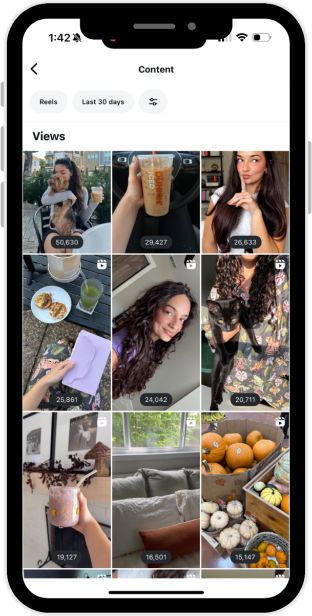
Reels View
Audience Analytics Screenshot Examples
First step: set your analytics filter to the last 30 days. Screenshotting your follower demographics from this window gives brands a fresh, accurate snapshot of who your audience is right now, making your applications and pitches far more compelling.
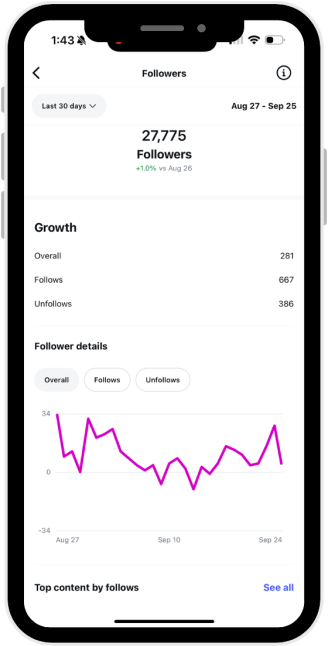
Follower Growth
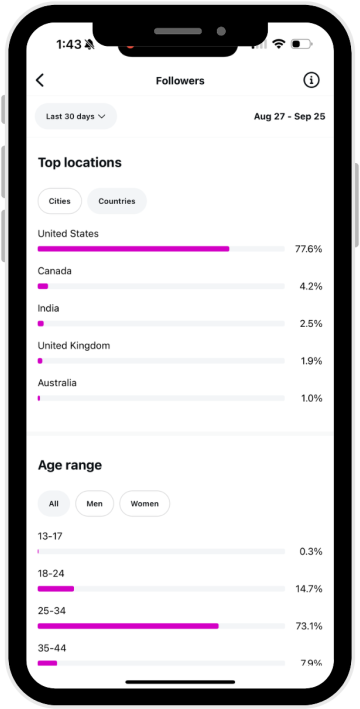
Follower Location
Distribution
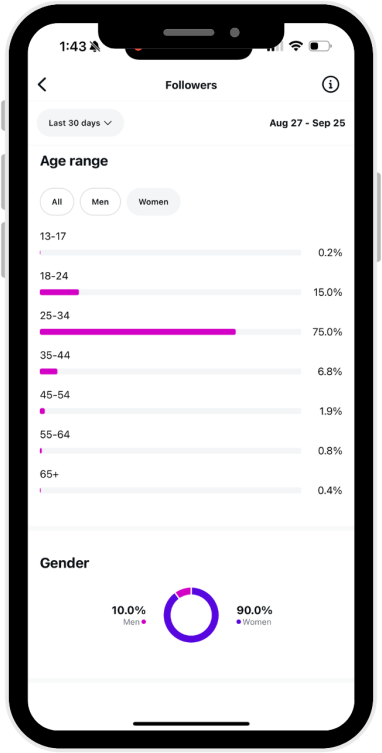
Age Demographics
(Women)
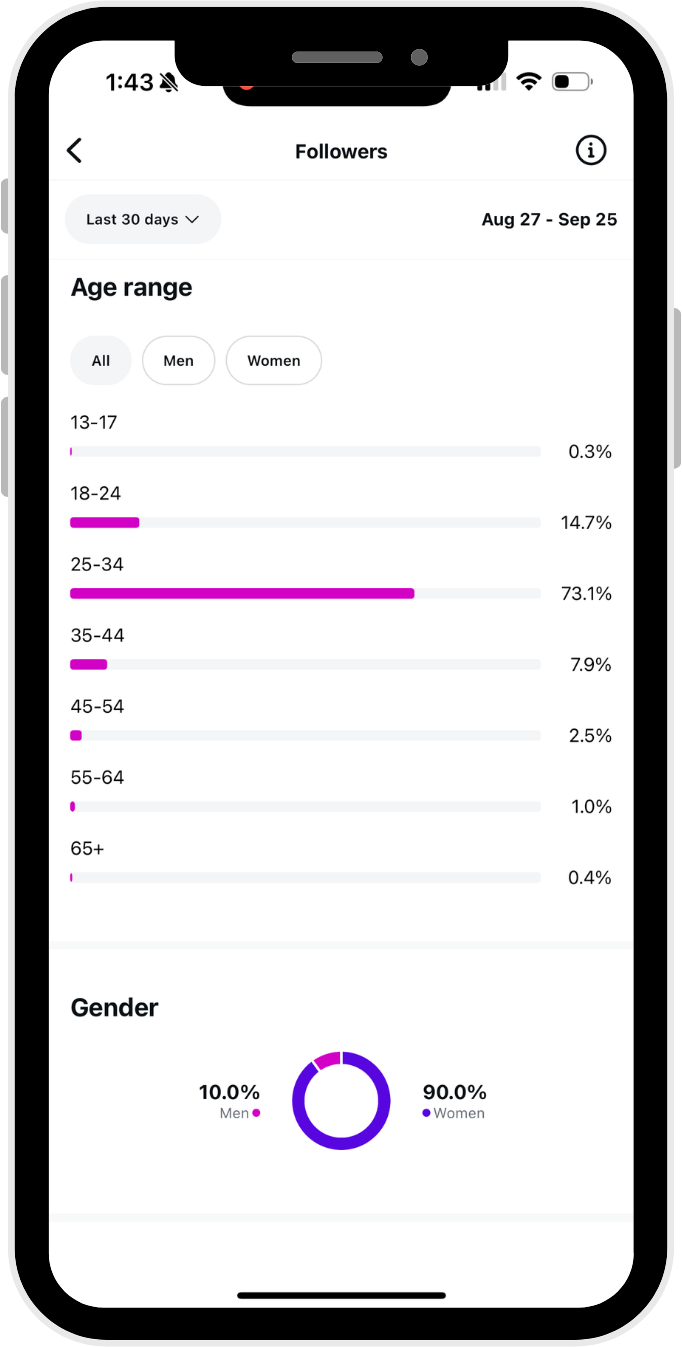
Age Demographics
(All)
View Analytics Screenshot Examples
Go to Account Dashboard → Views, then set the range to Last 30 Days to capture total views. From there, tap Audience to screenshot the top age ranges, gender breakdown, and top cities.
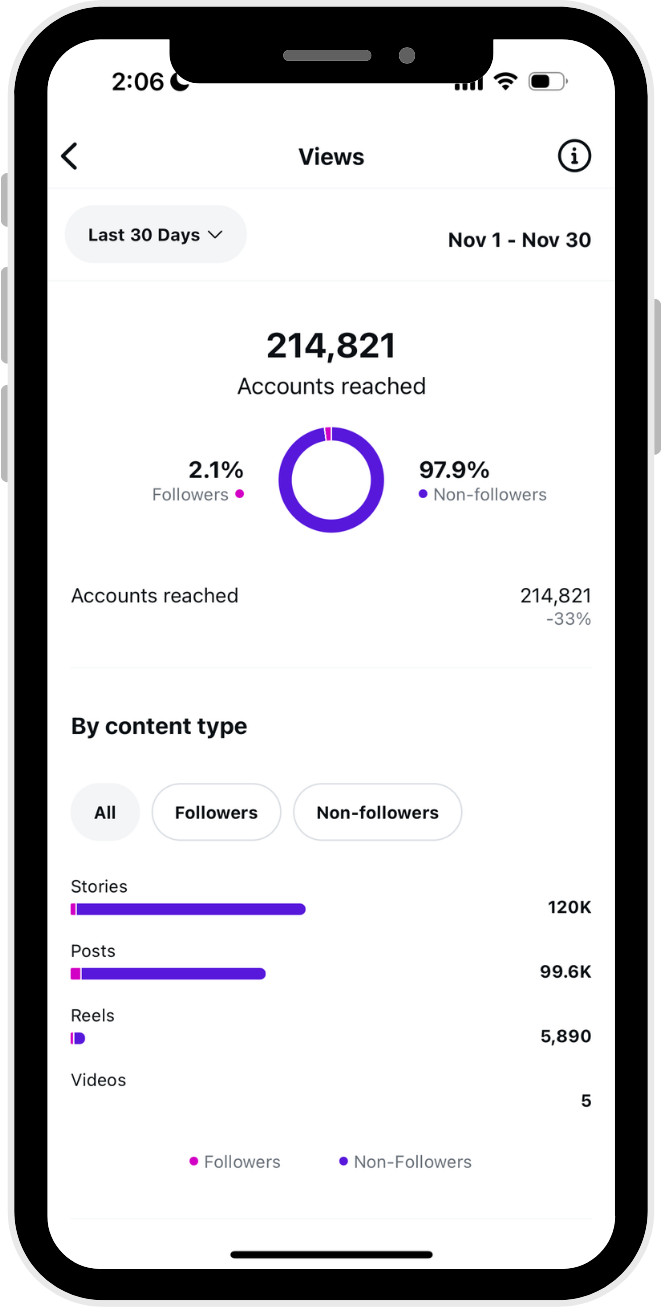
Total Views
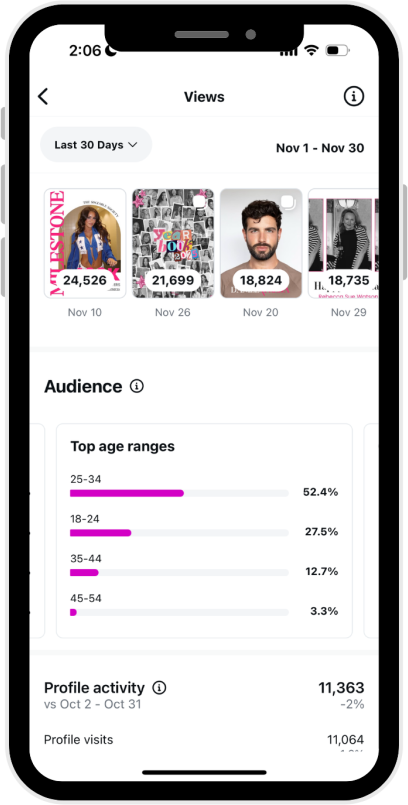
Top Age Ranges
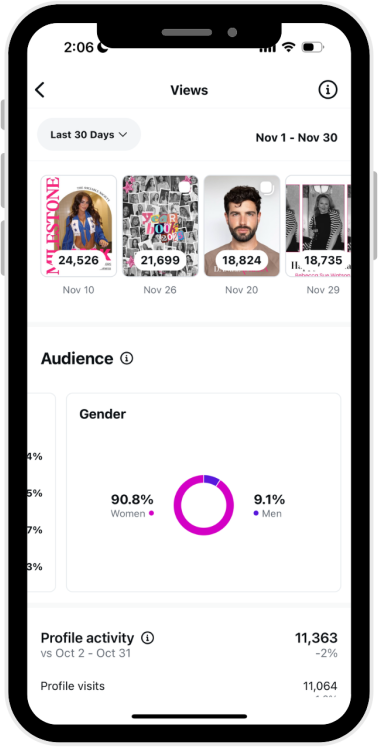
Gender Breakdown
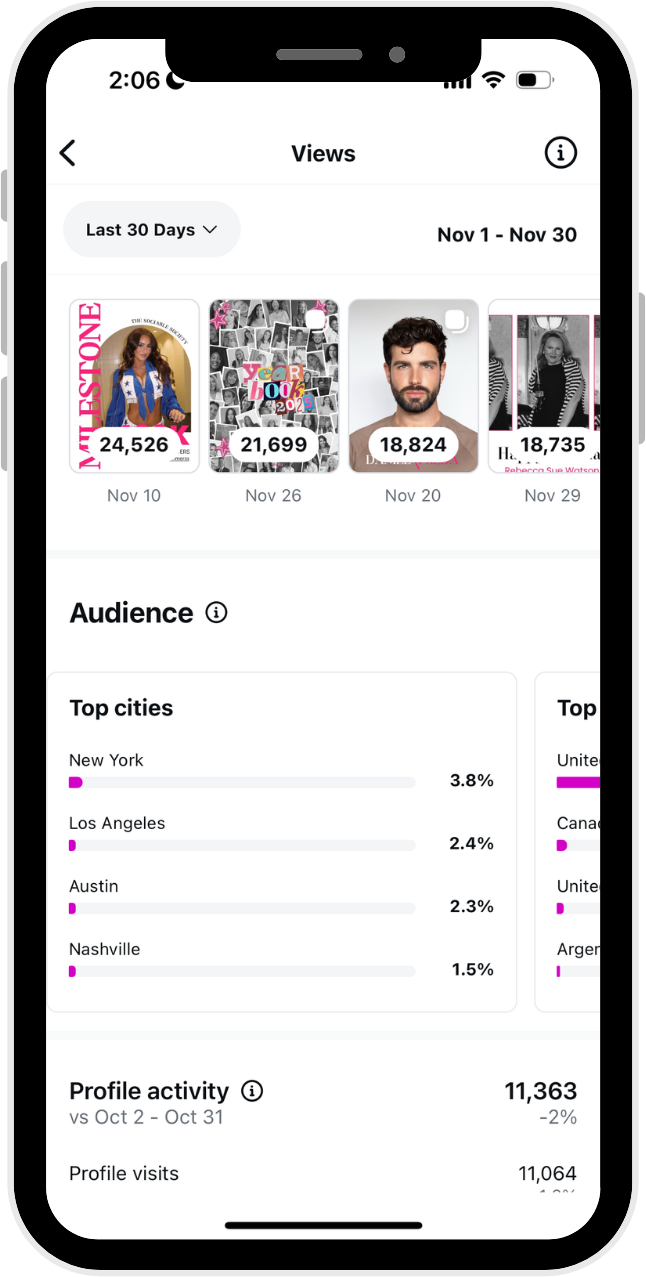
City Breakdown
TikTok Insights
TikTok moves fast, and both brands and talent managers use analytics to figure out whether your spikes are luck or momentum. Clean TikTok screenshots help managers see how your videos perform over time, how strong your retention is, and who’s actually watching.
This guide shows you how to grab the overview, content analytics, and follower data so brands get a full picture of your impact on the platform.
1. SWITCH TO A BUSINESS OR CREATOR ACCOUNT
- Analytics are only available if your TikTok account is set to Business or Creator.
- To switch: go to Settings → Account → Switch to Business Account (or Creator).
2. OPEN TIKTOK ANALYTICS
- Go to your profile and tap the three lines (≡) in the top right.
- Tap Creator Tools (or Business Suite if you’re on Business).
- Select Analytics.
3. OVERVIEW TAB
- This shows your video views, profile views, likes, comments, and shares over different time periods (7, 28, 60 days).
- Take a screenshot of this page—it gives brands a quick snapshot of your account performance.
TikTok Content Analytics Screenshot Examples
Go to your Content tab on TikTok to see the performance of every video you’ve posted. Tap into any individual video to view detailed metrics like Views, Likes, Comments, Shares, Average Watch Time, and the % of viewers who watched the full video. Screenshot the main Content tab — plus any individual video analytics a brand requests — to give a clear, platform-native view of your performance.
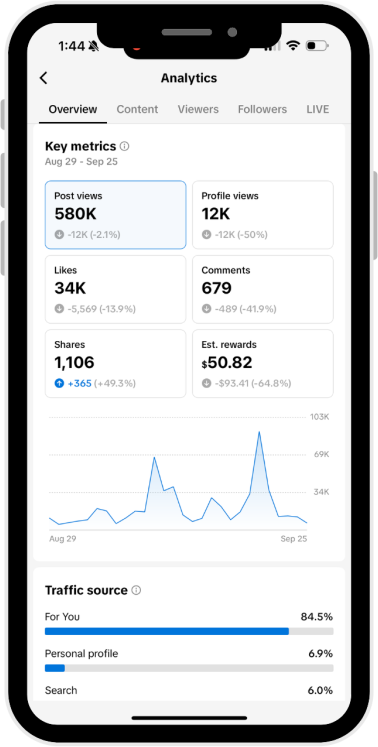
Content Performance
Overview
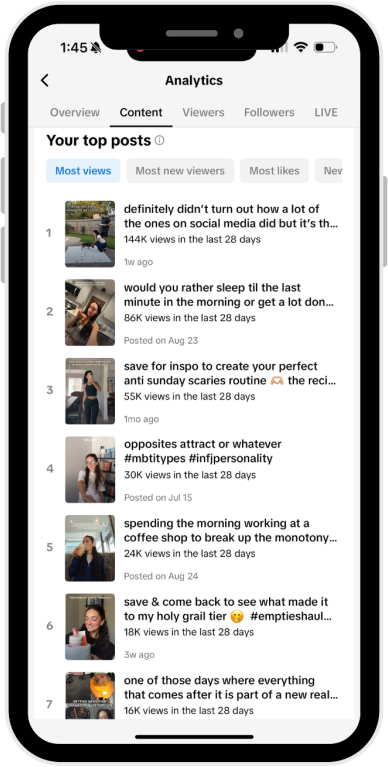
TikTok Top Posts
TikTok Follower Analytics Screenshot Examples
Go to your Content tab on TikTok to see the performance of every video you’ve posted. Tap into any individual video to view detailed metrics like Views, Likes, Comments, Shares, Average Watch Time, and the % of viewers who watched the full video.Screenshot the main Content tab — plus any individual video analytics a brand requests — to give a clear, platform-native view of your performance.
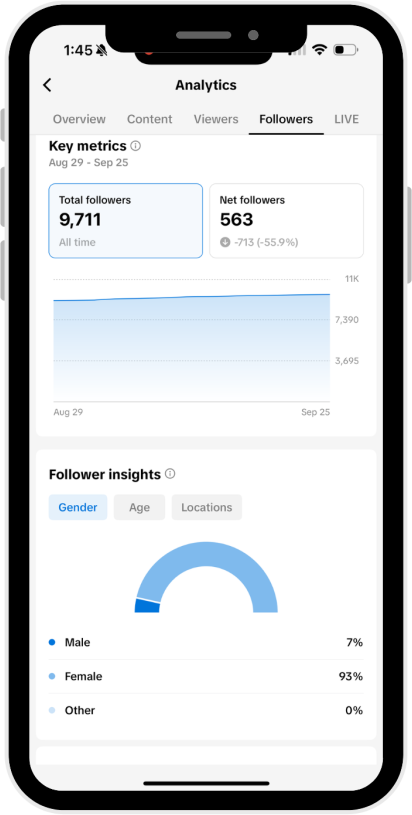
Follower Overview
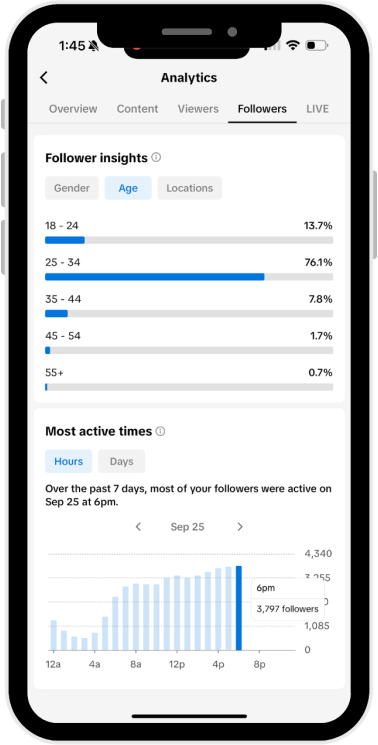
Follower Age
Demographics
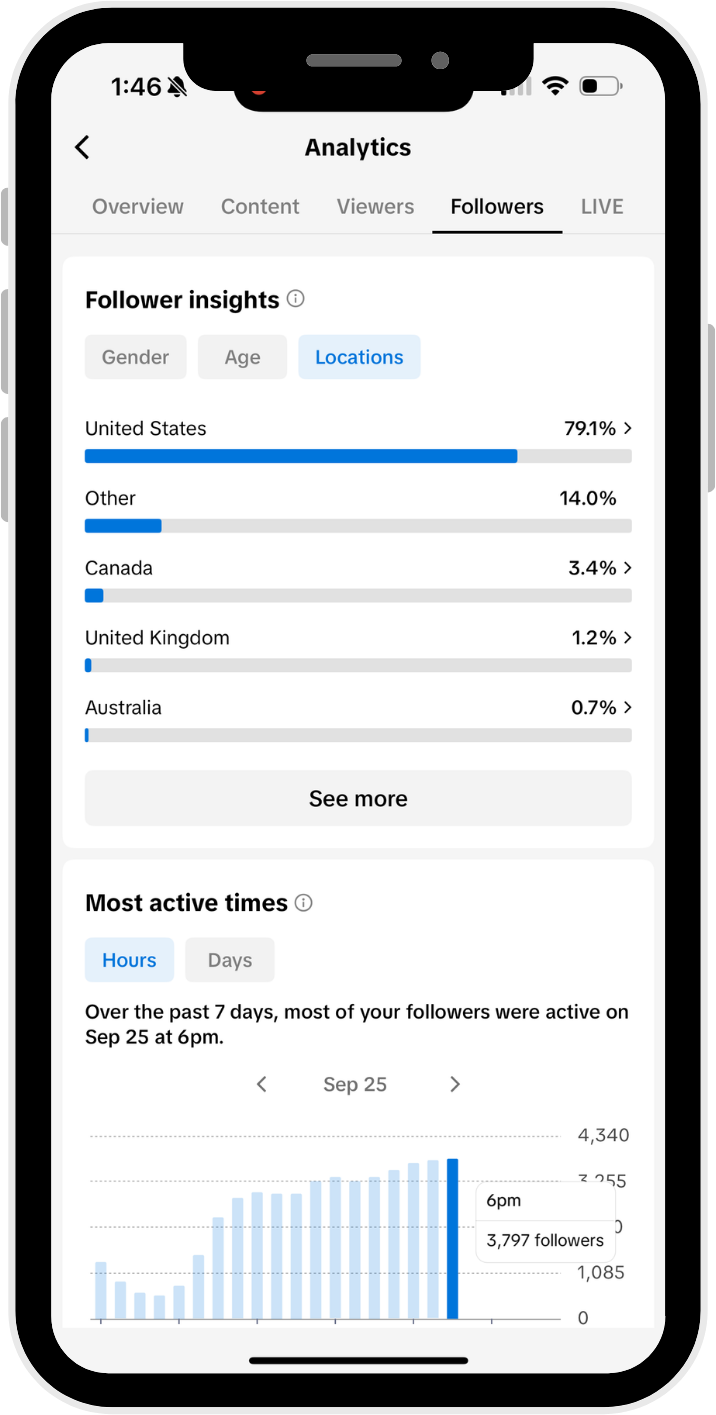
Follower Location
Demographics
YouTube Insights
YouTube analytics carry serious weight because they reveal depth: watch time, retention, loyal viewers, and long-term audience behavior. Brands and managers use these metrics to gauge your staying power and storytelling effectiveness.
In this section, you’ll learn exactly how to screenshot your channel overview, recent uploads, and audience data so your YouTube performance translates clearly to potential partners.
1. OPEN YOUTUBE STUDIO
- On desktop: go to studio.youtube.com and log in.
- On mobile: download the YouTube Studio app from the App Store or Google Play.
2. GO TO ANALYTICS
- In the left-hand menu, click Analytics (desktop).
- In the app, tap Analytics at the bottom. Here you’ll see a full overview of your channel’s performance.
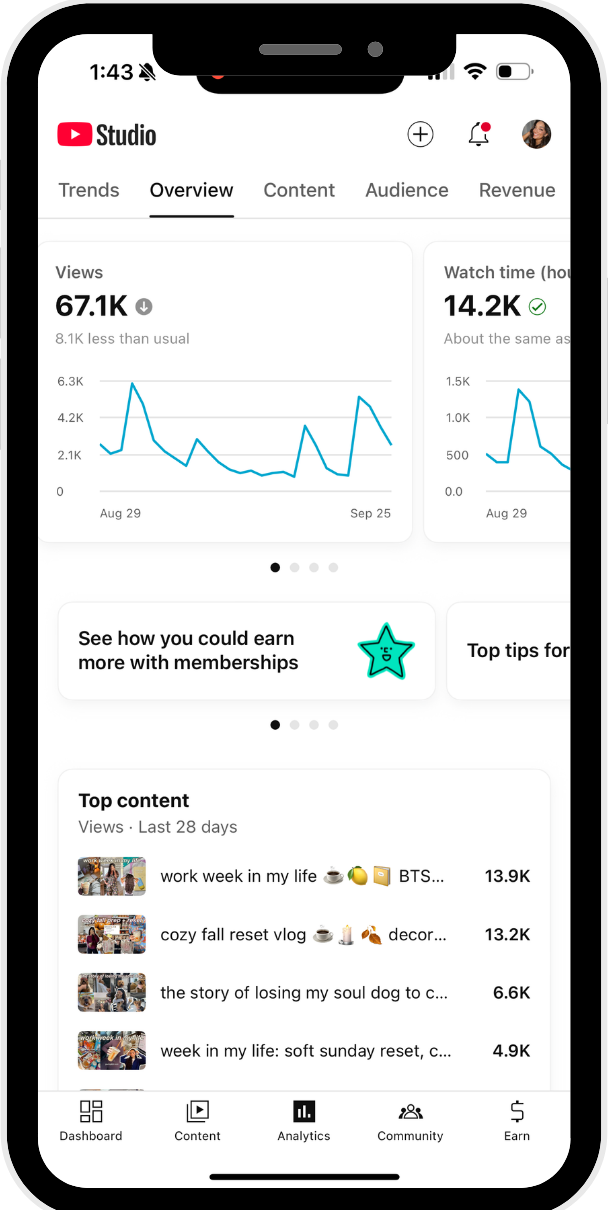
3. CHANNEL OVERVIEW
- Shows views, watch time, subscribers, and estimated revenue (if monetized).
- Adjust the date range (last 7 days, 28 days, 90 days, lifetime).
- Screenshot this page for brands—it’s the “big picture” of your channel.
YouTube Content Analytics Screenshot Examples
The Content tab shows your most recent TikTok videos and how each one performed at a glance. For every video, you’ll see key metrics like Views, Average View Duration, Total Watch Time, and Click-Through Rate. Screenshot the list view of your recent uploads — and, if a brand asks for more detail, grab the analytics page for any specific video.
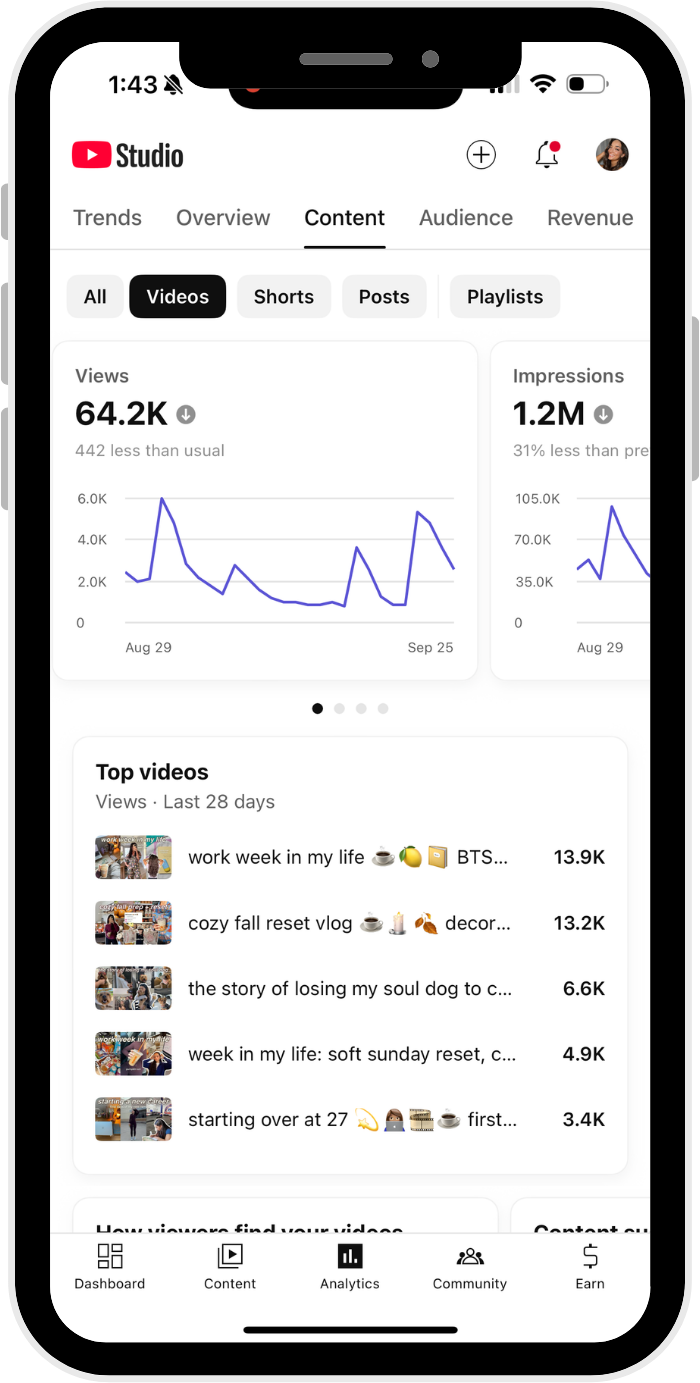
Video Views
Video Impressions
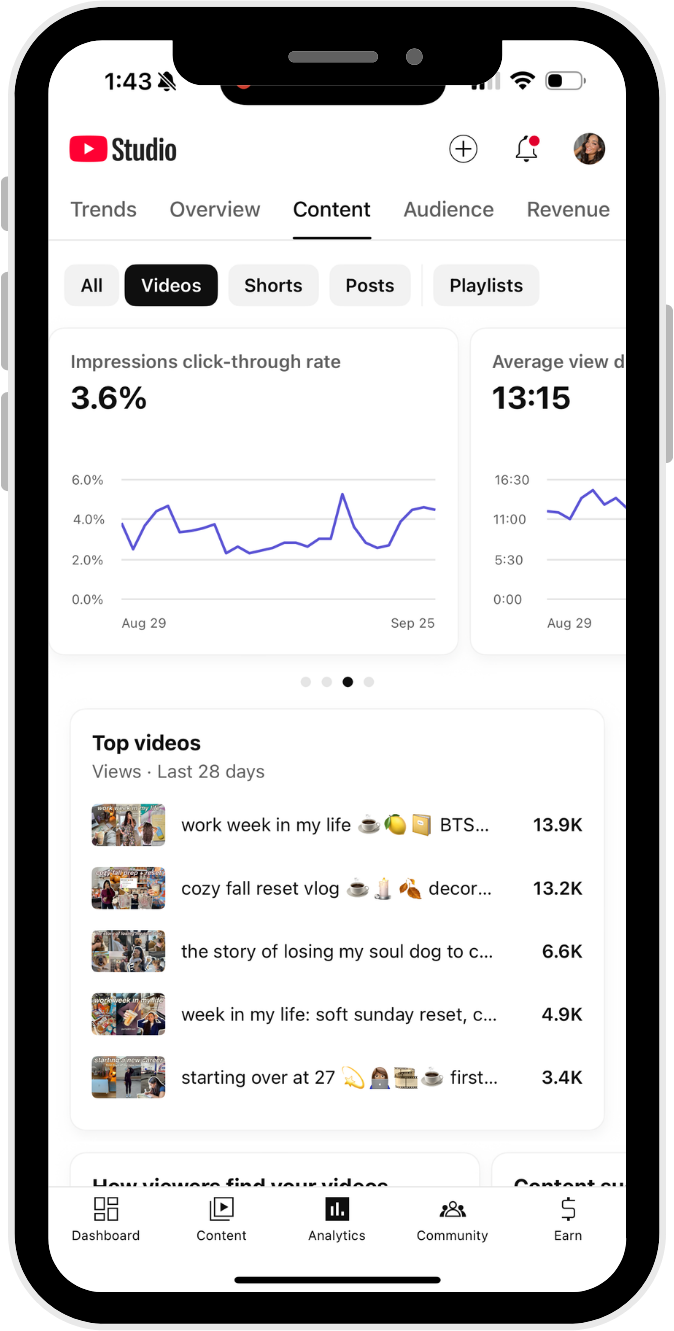
Impression Click-
Through Rate (Shorts)
YouTube Audience Analytics Screenshot Examples
The Audience tab gives a breakdown of who’s watching your content, including returning
vs. new viewers, top geographies, age and gender, and when your audience is most
active. Screenshot this section whenever a brand requests demographic insights or
wants to understand who your content is reaching.
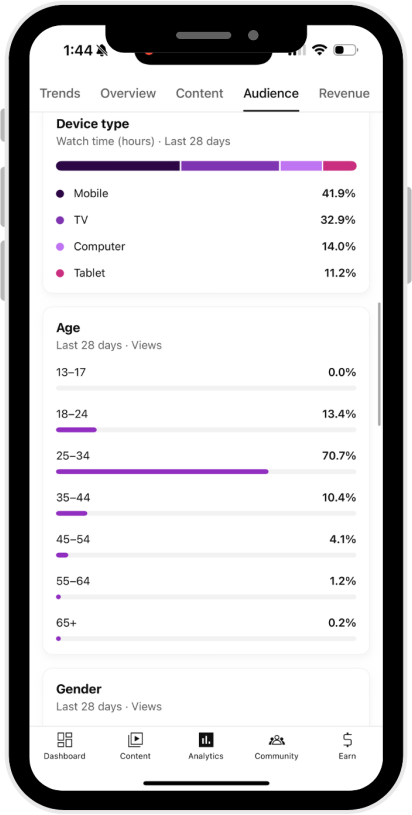
Audience Type & Age
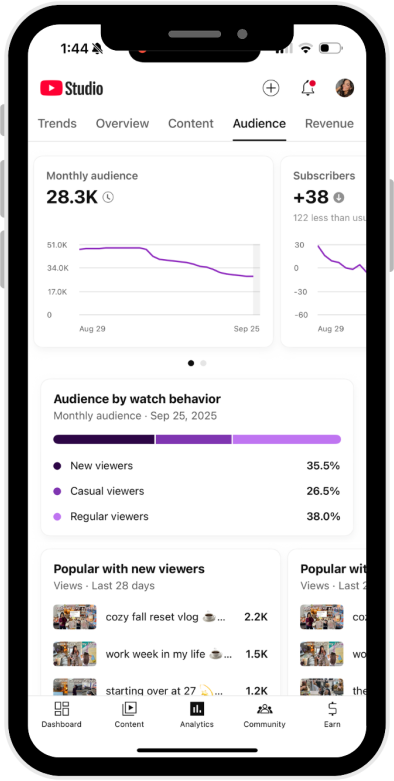
Audience Watch
Behavior
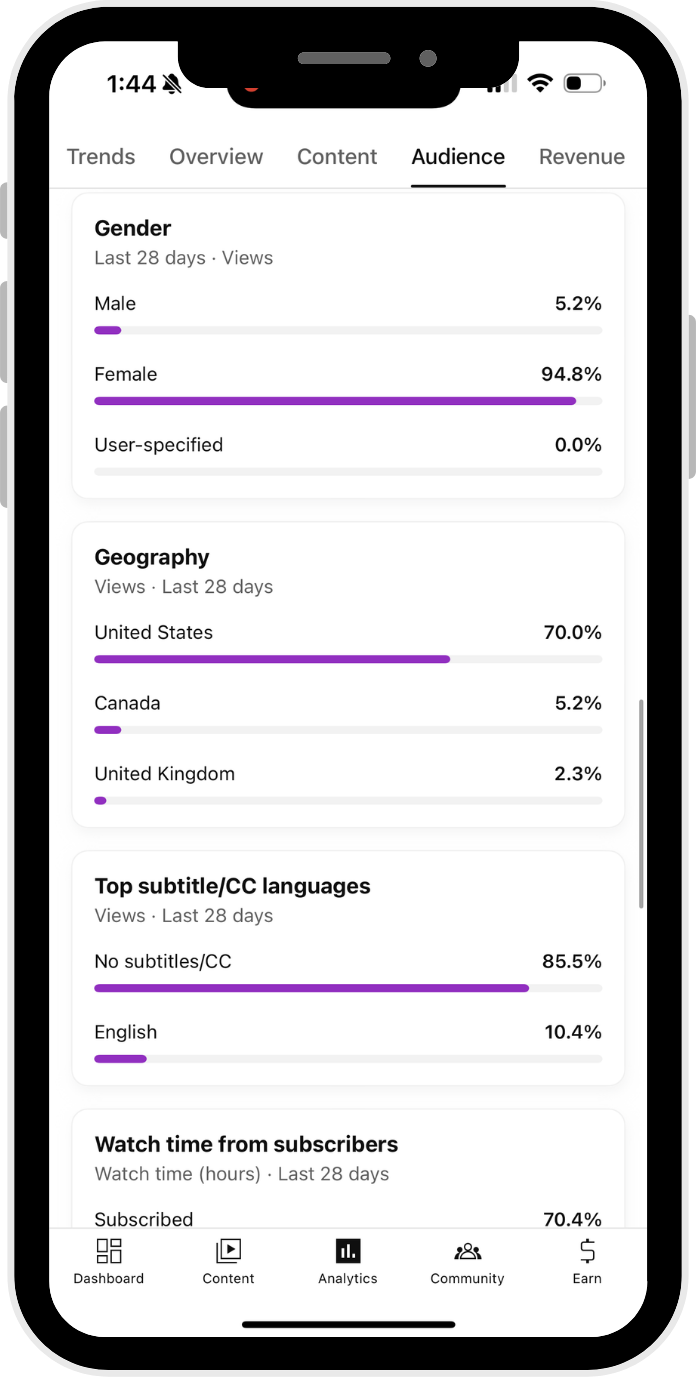
Audience
Demographics
YouTube Revenue Analytics (optional)
If you’re monetized, this tab shows revenue sources and ad performance. Only screenshot if a brand specifically asks for it.
LTK Insights
lTK runs on conversions, not vibes, and brands want to see how your content actually drives clicks and sales. Screenshots from the LTK Creator App give managers the clarity they need to understand your earning patterns, top-selling items, and audience shopping behavior. This section breaks down the exact screens to capture so your LTK performance is easy for brands to evaluate at a glance.
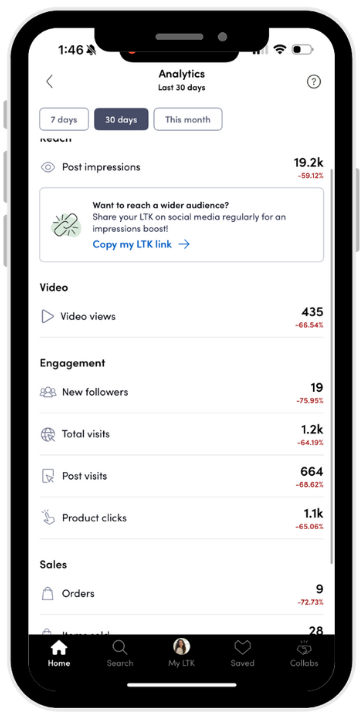
Content Analytics
1. LOG INTO THE LTK CREATOR APP
- Open the LTK Creator App on your phone.
- Sign in with your creator account.
- Note: Analytics are only available through the Creator App, not the shopper app.
2. GO TO “PERFORMANCE”
- Tap on the Performance tab in the bottom menu.
- This is where you’ll see analytics for posts, products, and sales.
3. SELECT TIMEFRAME
- At the top, use the dropdown to choose: Today, Last 7 days, Last 30 days, or Custom range.
4. CHECK CONTENT PERFORMANCE
- Review your top-performing posts (tap on a post for detailed metrics).
- See product clicks, sales, and commission generated.
5. TAKE YOUR SCREENSHOTS
- Capture the overview dashboard (impressions, clicks, sales, commission).
- Capture individual post performance (product clicks + sales).
- Screenshot top products if relevant.
6. AUDIENCE INSIGHTS (OPTIONAL)
- Tap the Audience tab under Performance.
- Screenshot details like age, gender, top locations, and shopper behavior if needed.
Snapchat Insights
Snapchat may not be every creator’s main platform, but brands still use its analytics to verify reach and engagement, especially for stories-based campaigns. Clean screenshots of your insights dashboard help managers quickly evaluate your audience size, story performance, and consistency.
This guide shows you where everything lives so you’re sending useful, campaign-ready data not guesswork.
1. OPEN SNAPCHAT AND GO TO YOUR PROFILE
- Tap your Bitmoji or profile icon in the top-left corner.
- This takes you to your profile page.
2. ACCESS CREATOR HUB (INSIGHTS)
- Tap the Insights or Creator Hub option (only available if you’re part of Snapchat’s Creator program or have a Public Profile).
- If you don’t see it, make sure you’ve switched to a Public Profile in settings.
3. OVERVIEW TAB
- Here you’ll see performance metrics like:
- Story Views
- Subscribers
- Subscriptions gained/lost
- Reach & Engagement
- Screenshot this page to show your overall activity.
4. STORIES PERFORMANCE
- Each story card shows:
- Views
- Completion rate (how many people watched all the way through)
- Screenshots taken by viewers
- Capture screenshots of the most relevant stories or campaigns.
5. AUDIENCE INSIGHTS
- In Insights, go to Audience to see:
- Top locations
- Demographics (age, gender)
- Interests
- Screenshot this section if a brand wants to understand your audience better.
6. TIMEFRAME
- You can usually adjust results to last 7 days, 28 days, or 90 days.
- Make sure to screenshot the range that matches what the brand asked for.
Amazon Insights
Amazon (Influencer/Associates) analytics help brands understand what converts, what doesn’t and how strong your link performance really is. Clear screenshots from your Associates dashboard let managers see clicks, orders, and earnings without having to dig.
This section walks you through grabbing the right reports so brands get the data they need to measure your influence where it counts — sales.
1. LOG INTO YOUR AMAZON ASSOCIATES/INFLUENCER ACCOUNT
- Open the Amazon Associates dashboard (on desktop or mobile browser).
- Note: The Influencer Program uses the same dashboard as Associates.
2. GO TO “REPORTS”
- In the top navigation, click on Reports.
- This is where you’ll find all your clicks, orders, and earnings.
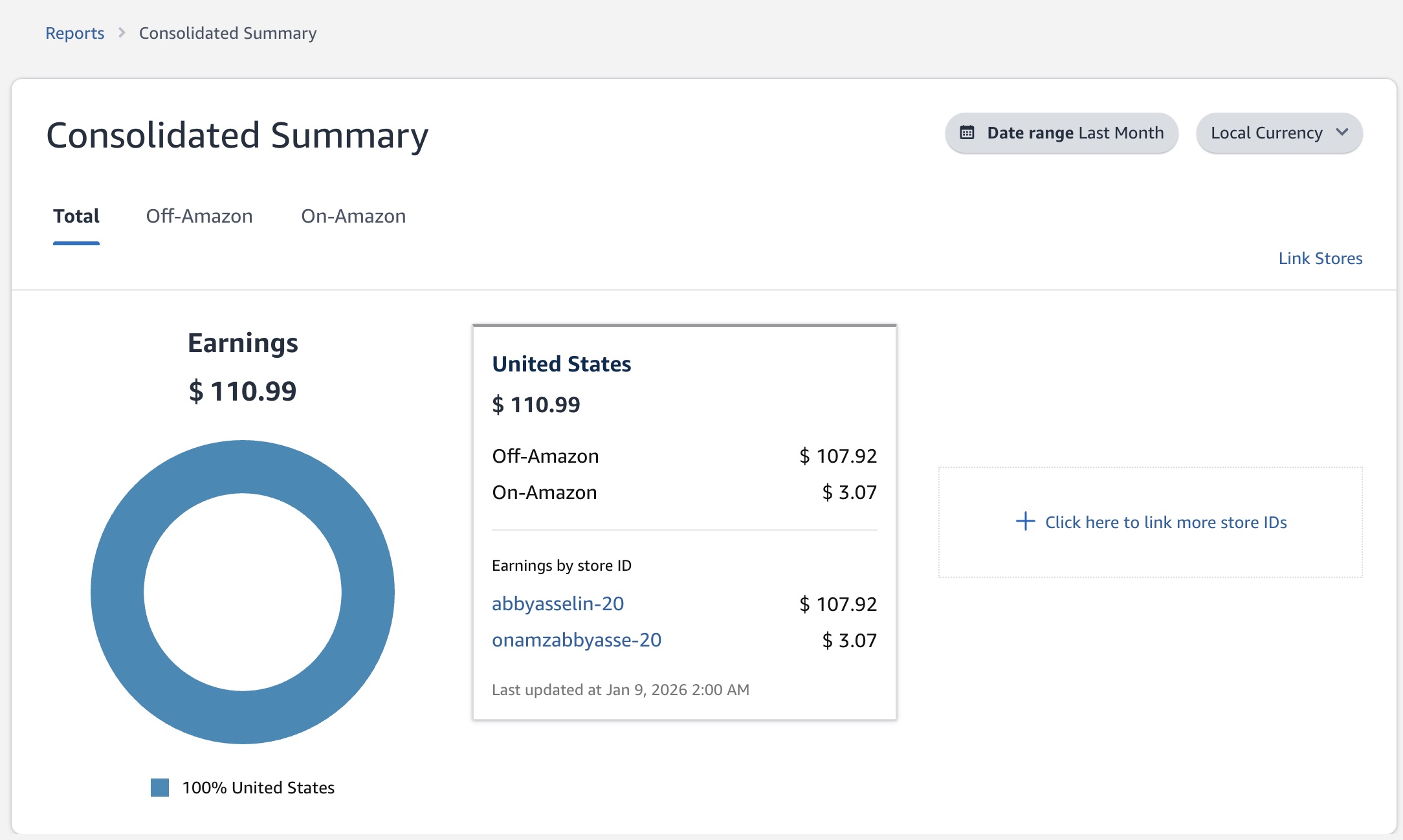
3. CHOOSE THE TIMEFRAME
- At the top, select a date range: Today, Yesterday, Last 7 days, Last 30 days, or Custom range.
4. REVIEW THE “EARNINGS OVERVIEW”
- This section shows: Clicks, Ordered items, Shipped items, Conversion rate, and Earnings.
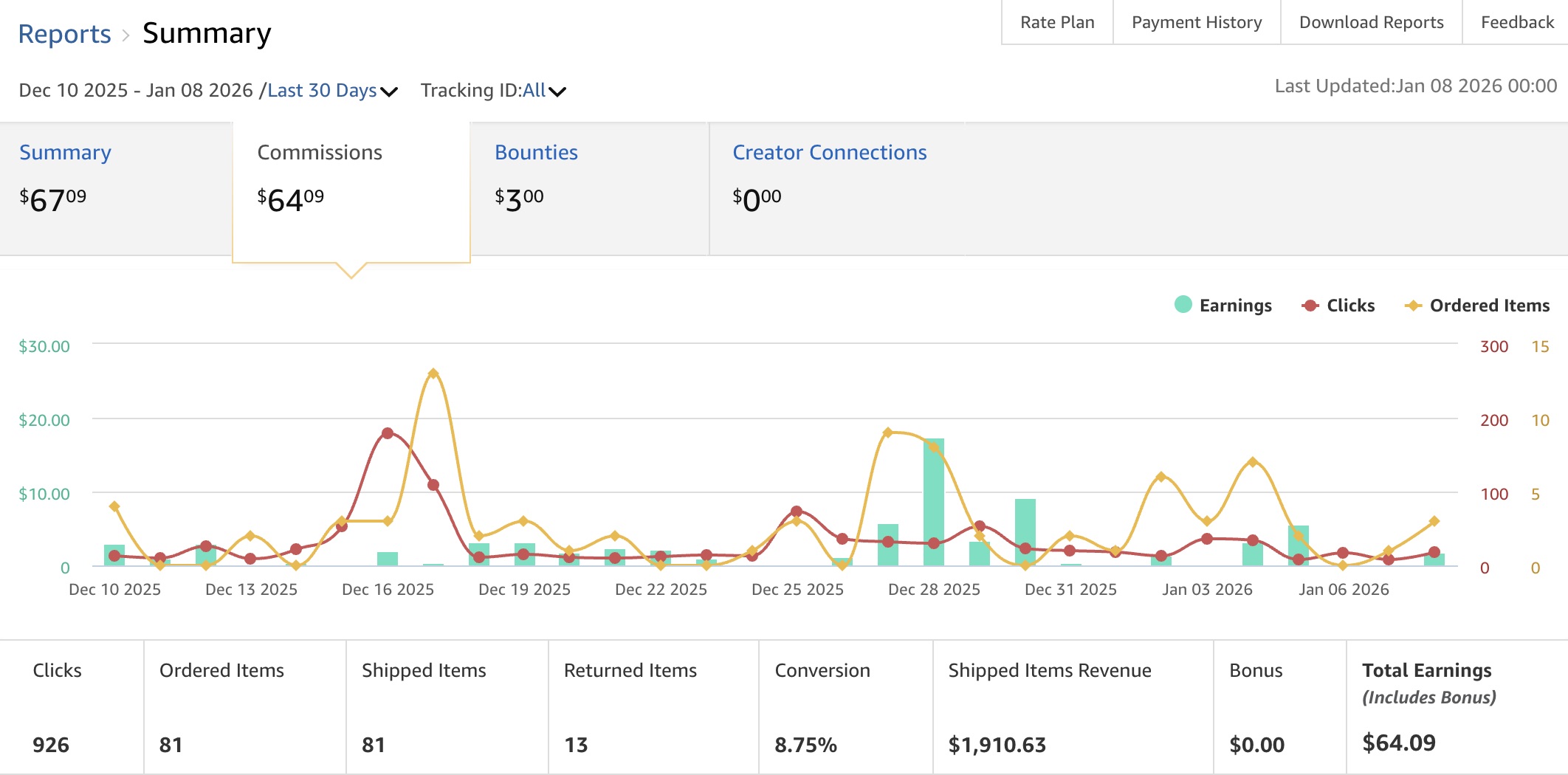
5. TAKE YOUR SCREENSHOTS
- Capture the Earnings Overview chart (bar graph + totals).
- Capture the detailed table below with performance by product/link.
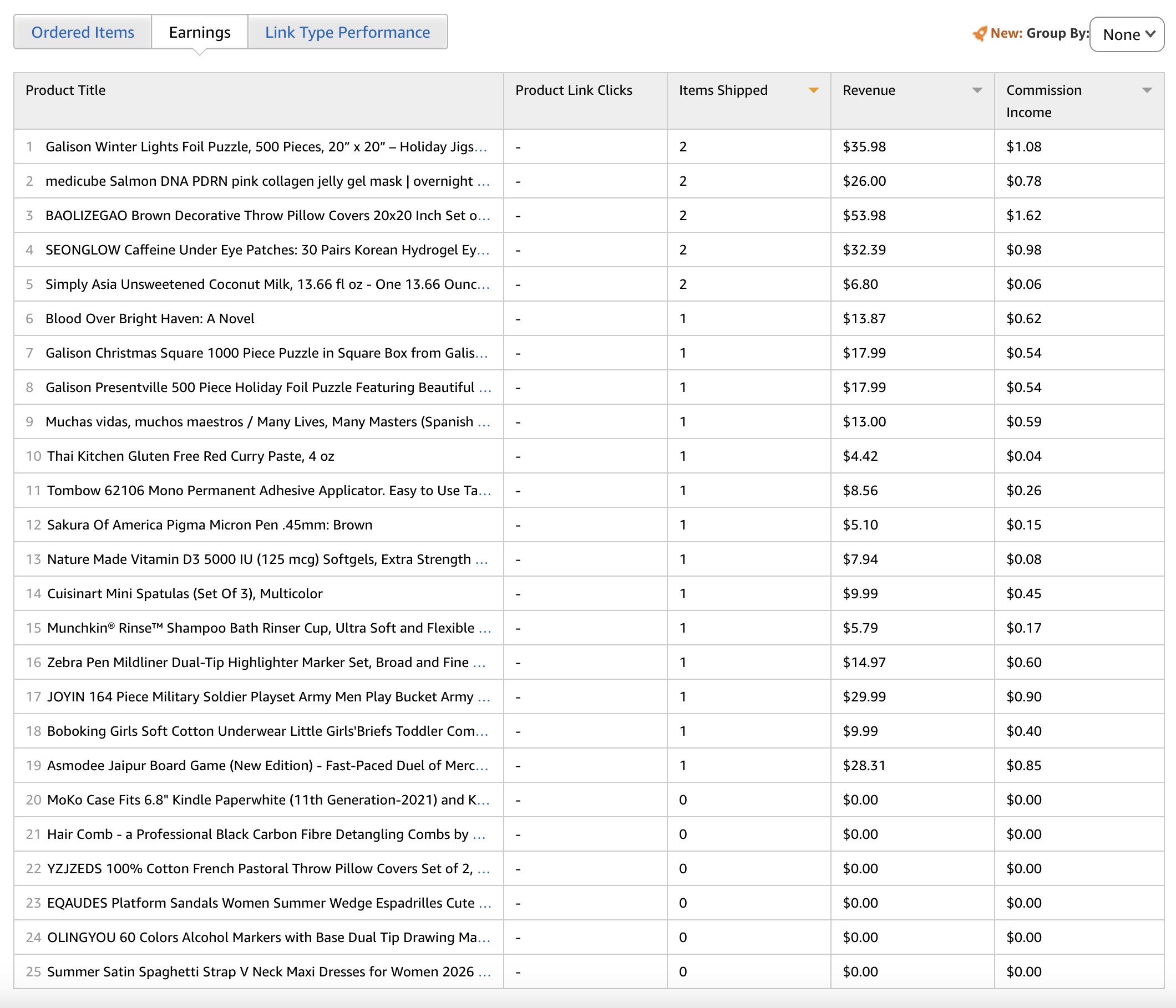
EXTRA: TRACKING IDS (OPTIONAL)
- If you use multiple tracking IDs, you can filter by each to show specific performance.
- Screenshot these views if a brand/manager requests more detail.
In Summary: Why Clear Creator
Analytics Give You An Edge
Collecting your creator analytics isn’t busywork; it’s how you show brands and managers the real value of what you do. Clean screenshots tell a clearer story than any pitch decks or DM ever will, because they give proof of your audience, your performance, and your potential. When you send complete, accurate analytics across every platform, you make it easier for decision-makers to advocate for you, place you in campaigns, and negotiate stronger deals on your behalf.
Once you’ve saved these screenshots, keep them organized and updated. Brands evaluate creators based on trends, not one-off moments, so having the most recent data ready to send puts you miles ahead of everyone scrambling at the last minute. Treat your analytics like part of your mandatory creator toolkit. It’s one of the simplest ways to look professional, protect your opportunities, and make sure your digital footprint works for you — not again you.
Subscribe to our Monthly
Influencer Marketing Newsletter